Timecode Compare measures offset and drift between your
LTC sources: sample-accurately, in real time, on your Mac.
Requires macOS 14 Sonoma or later.Works with any Core Audio interface with 2+ inputs.
A precise meter for frame,
subframe,sample-accurate sync.
One tool to verify every timecode on your set.
1. Verify your cameras and generators
All clocks drift, but not at the same rate. Jam your cameras, recorders and
LTC generators, let them free-run against a reference and see which one wanders off
too much.
2. Cross-check external timecode
Sooner or later you get LTC timecode from a different source: an OB truck, from a
client or another crew. Put it next to your master and you can tell whether the two
agree, before the material meets in post.
3. Measure latency through your chain
Every converter, embedder and recorder in the path adds a little delay. Tap the
chain at several points at once and you see not just how much it adds, but where it
happens.
A true time reference.
No grandmaster, but a GNSS-disciplined time server on the network?
Timecode Compare has its own precision NTP client. It polls the server directly and steers a
reference clock from the replies, without going through the system time.
Measured on a wired network against a grandmaster with GNSS, LTC and NTP: Timecode Compare stayed
within 0.1 ms of the grandmaster’s timecode. The app shows its current
maximum error live and finds the best time servers on your network for you.
LTC output.
Timecode Compare generates LTC from its reference clock on the headphone jack or
any output of your audio interface, so you can jam cameras, recorders and generators to
true time of day. You can also correct the latency of your output in the
settings to get that extra bit of accuracy.
High frame rates, read directly.
SMPTE 12M only defines frame rates up to 30 fps. Over the years that
produced a range of different approaches to handling anything faster. The HFR
button doesn’t just double the base frame rate: it shows the real
calculated in-between frames. Frame numbers, subframes, residual and 24-hour
projection follow automatically. You can even open a second Timecode Compare
window to watch a standard and a high frame rate side by side.
Every feature
Sample-accurate: measures to sample precision (~0.02 ms at 48 kHz)
Up to 8 LTC sources: master + 7 compare channels (Solo: master + 1, free: master only)
Live drift measurement: including trend and 24-hour projection
NTP reference: your time server as master, more precise than the Mac’s system time
LTC output: the reference time as LTC, date in the user bits, latency offset
Drift report PDF & session logs: verdict per channel, drift charts, event log
Cross-rate comparison: keeps measuring across frame rates
Pause: freeze all timecode while measurement keeps running in the background
Multiple windows: watch normal and high frame rates side by side; in Pro, each window can measure its own interface
Appearance settings: set your own offset thresholds for color warnings
User Bits & timecode detail: read User Bits and full timecode information
Screenshots
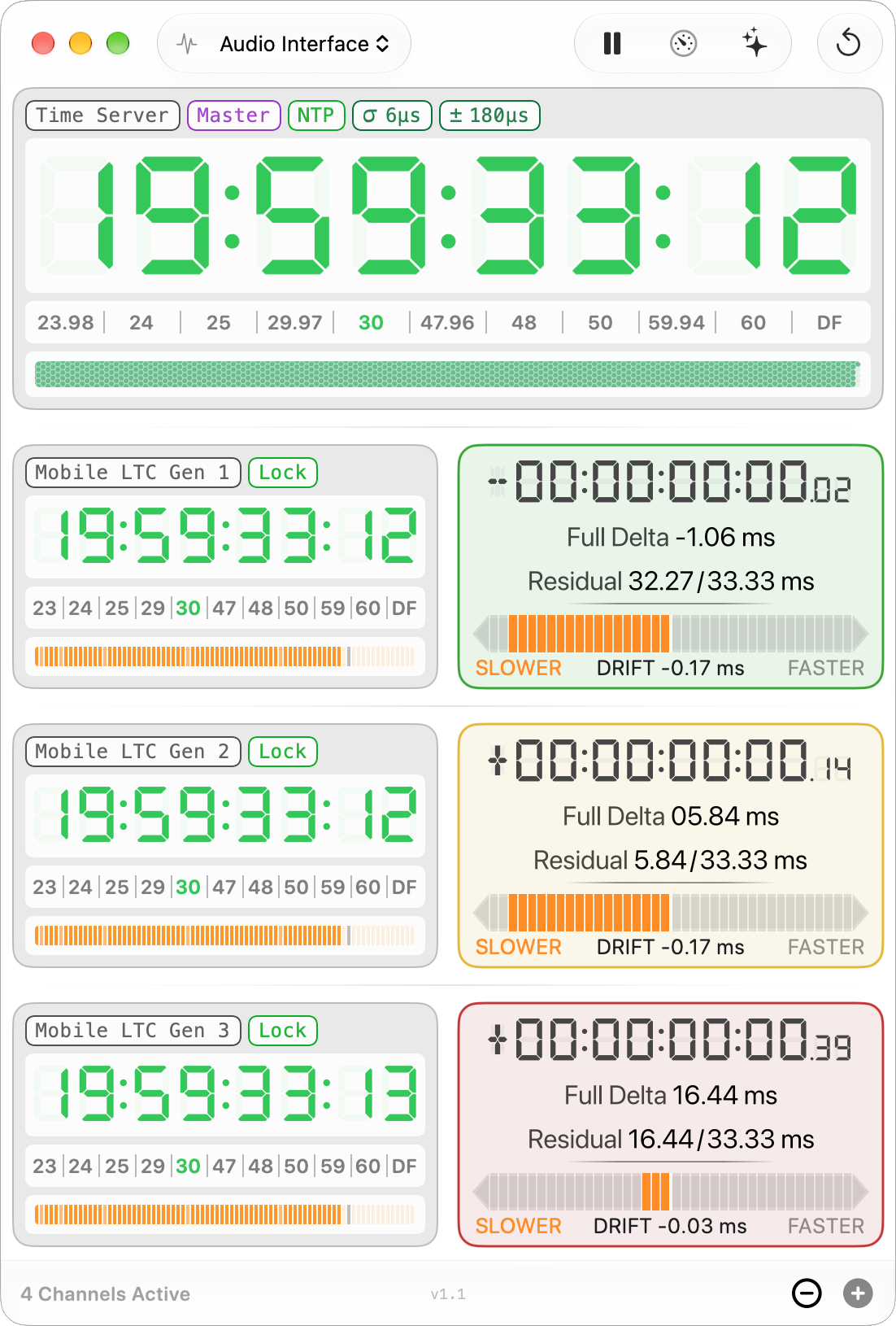
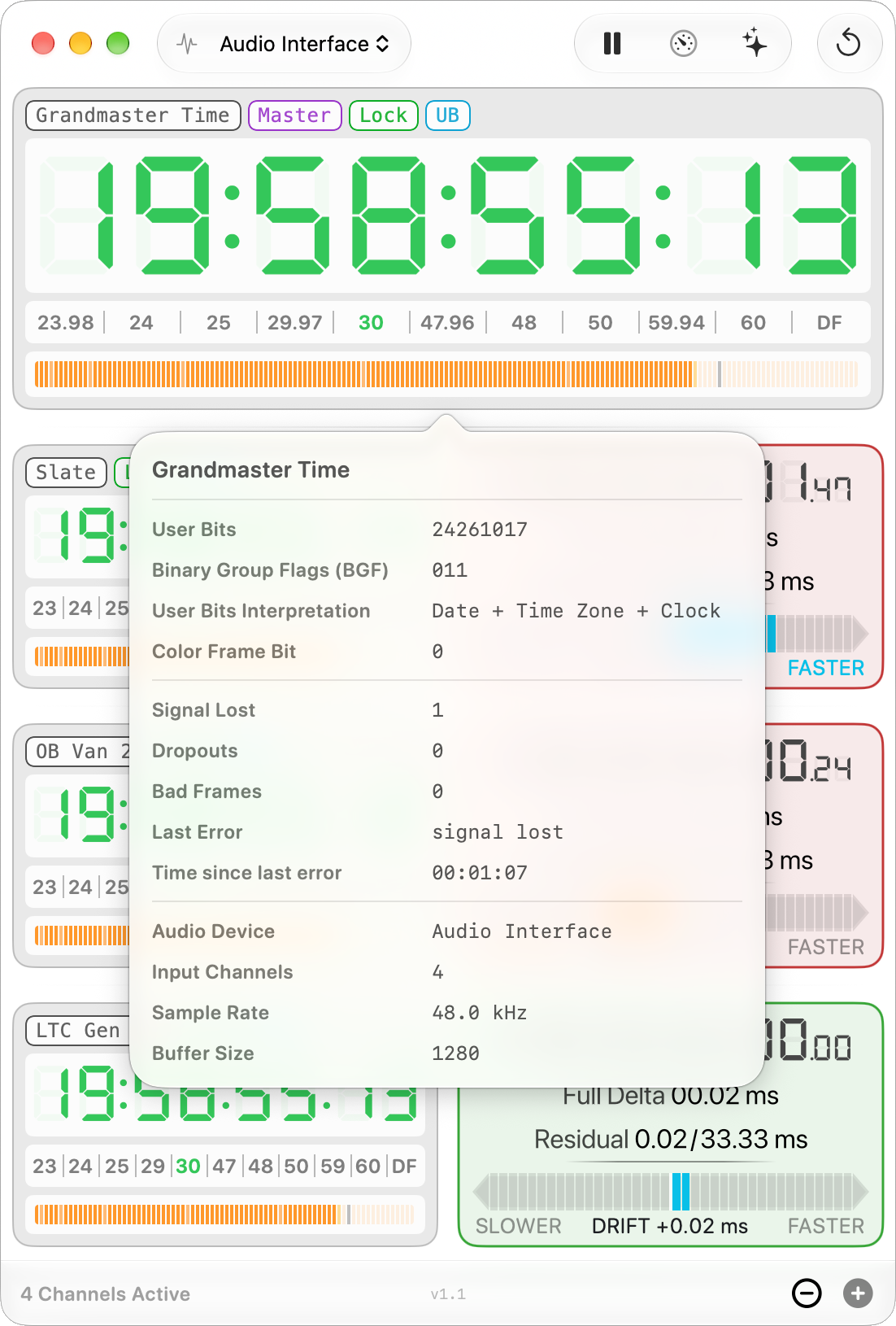
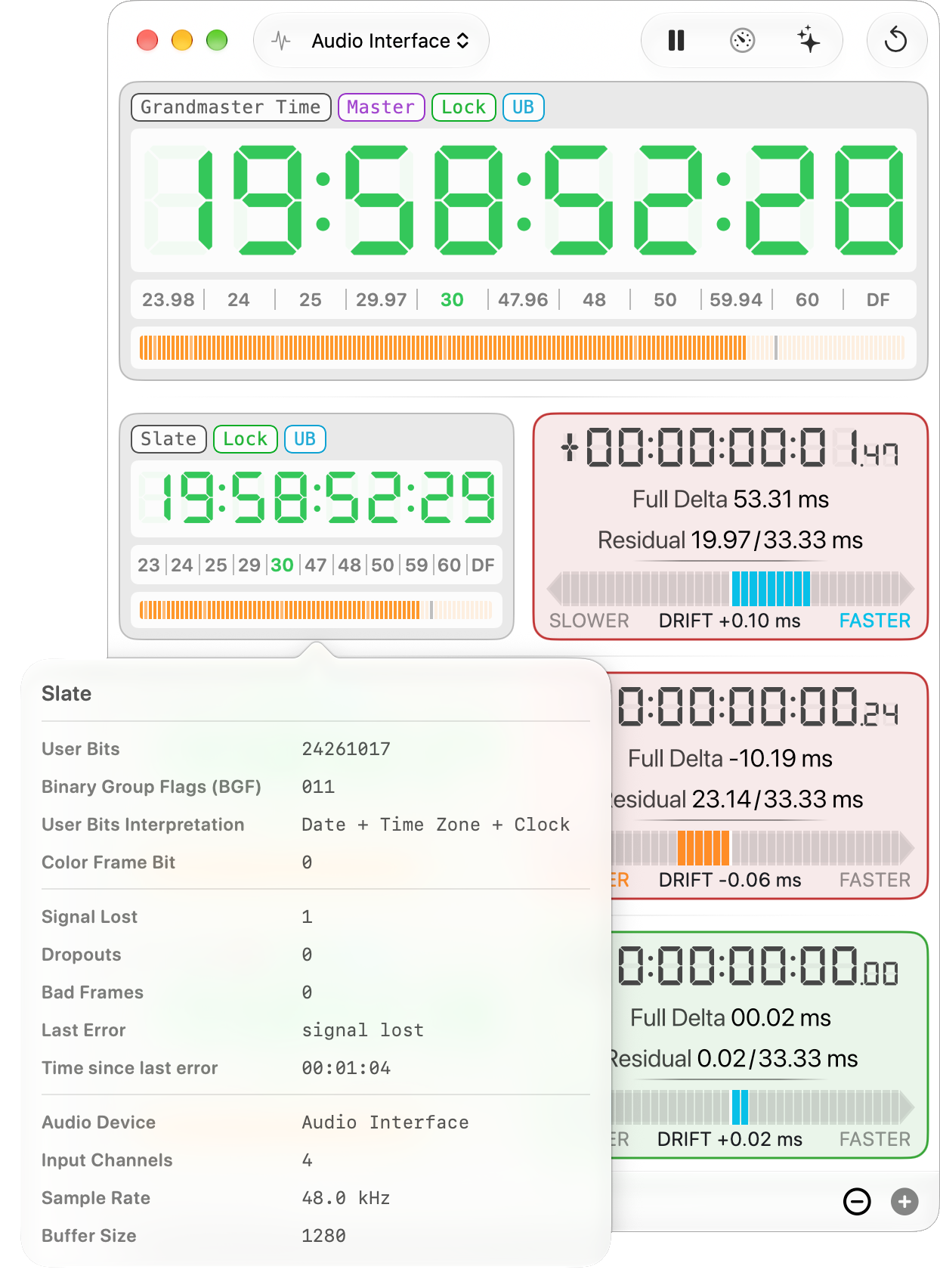
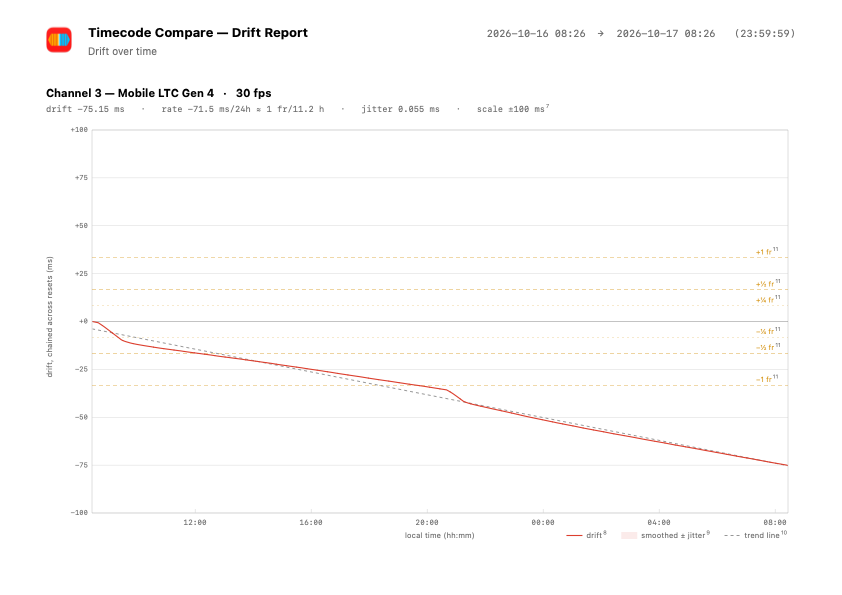
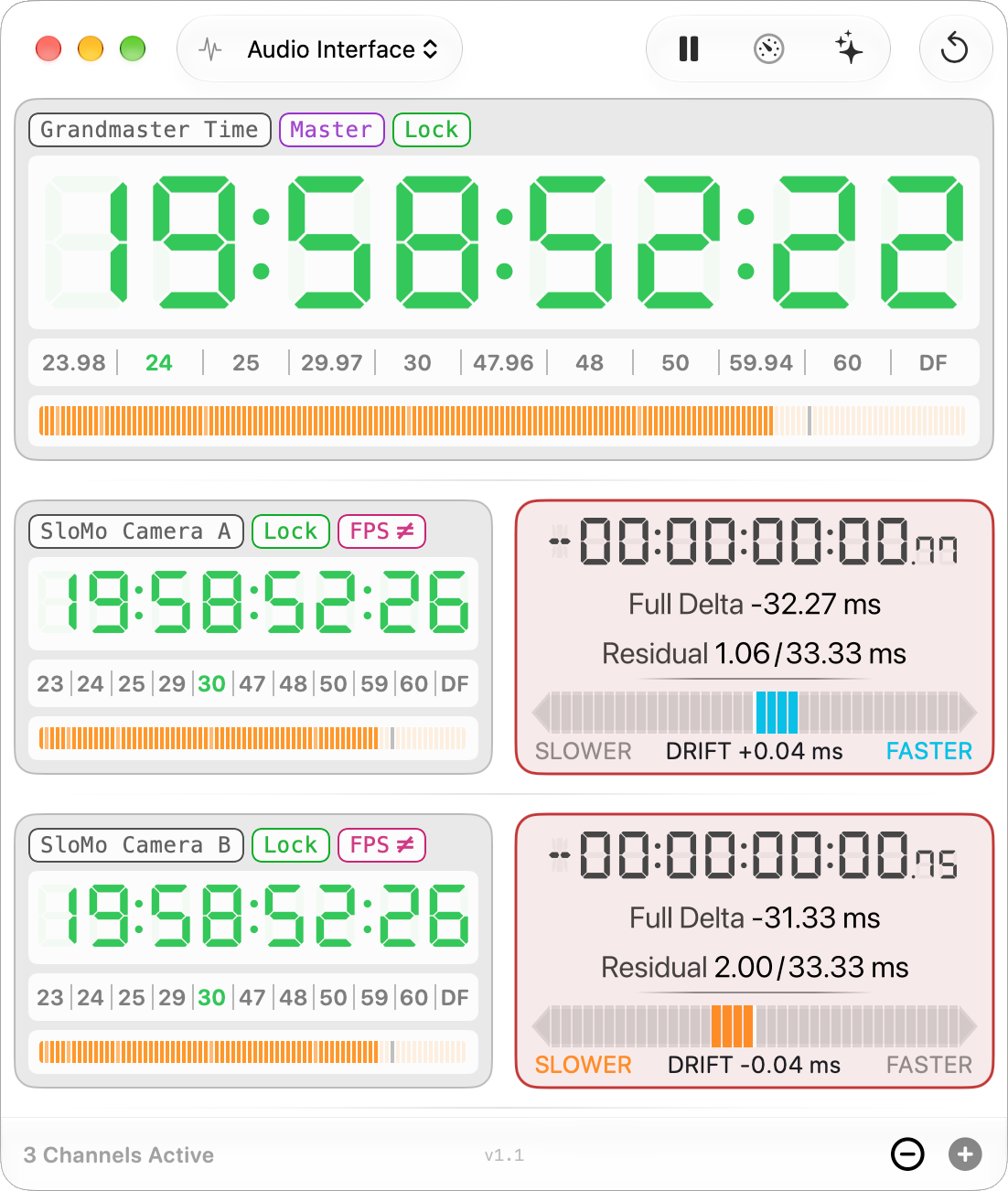
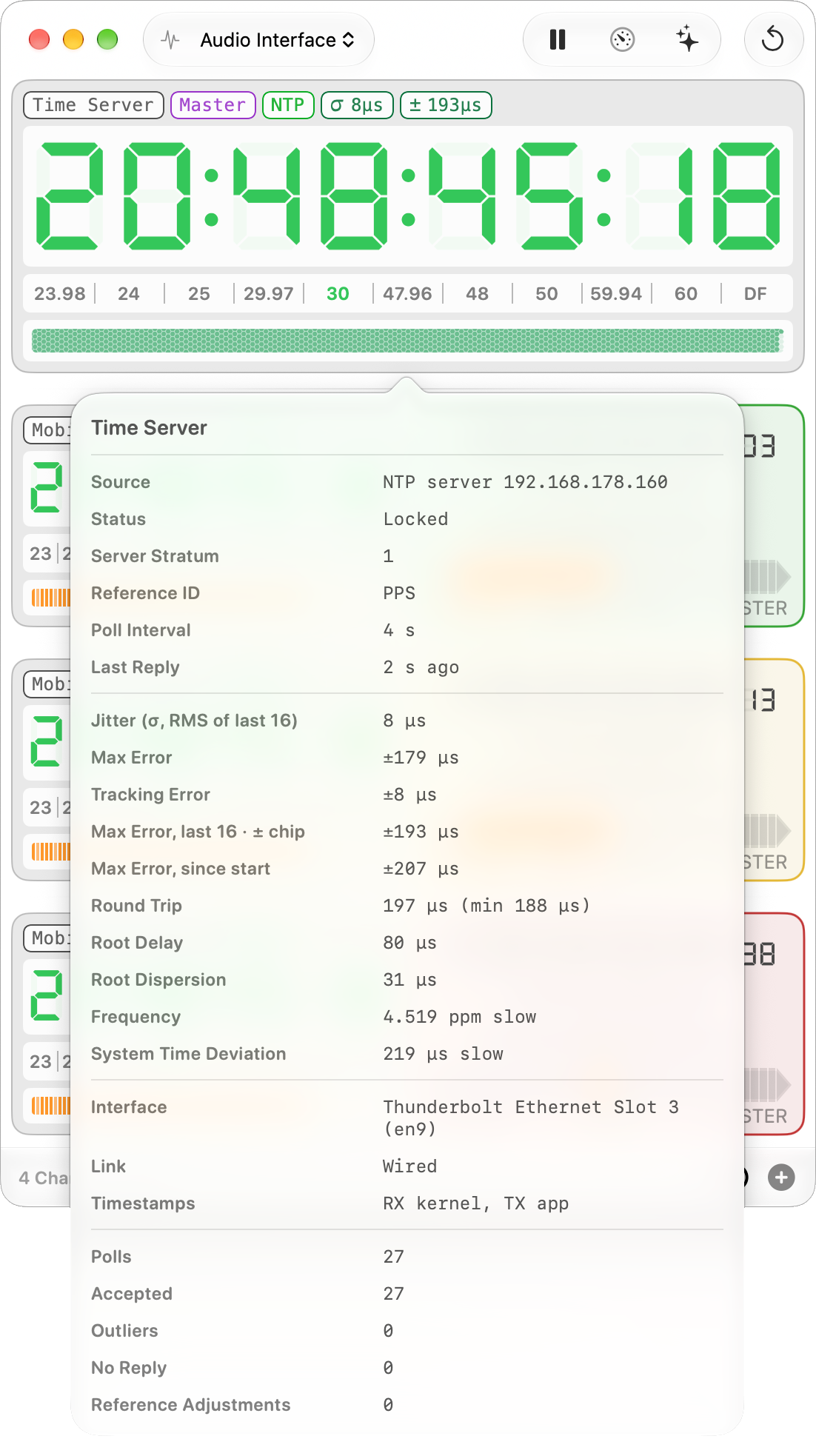
Click the master timecode for user bits, date, flags, dropouts and audio device.The same popover on any compare channel.Click the drift bar for drift since start and the 24-hour projection.One page of the drift report, showing a single channel over 24 hours.A 24 fps master and 30 fps cameras, measured across the rates.The NTP master shows server, jitter, max error and more.
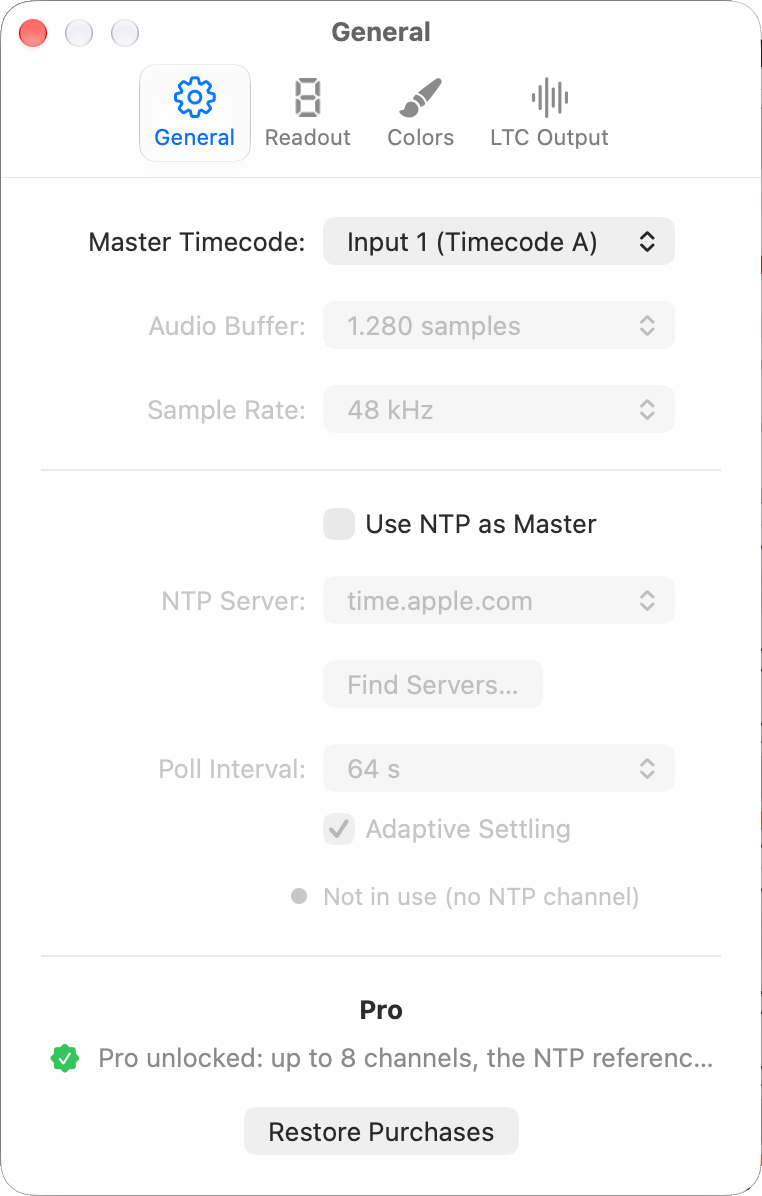
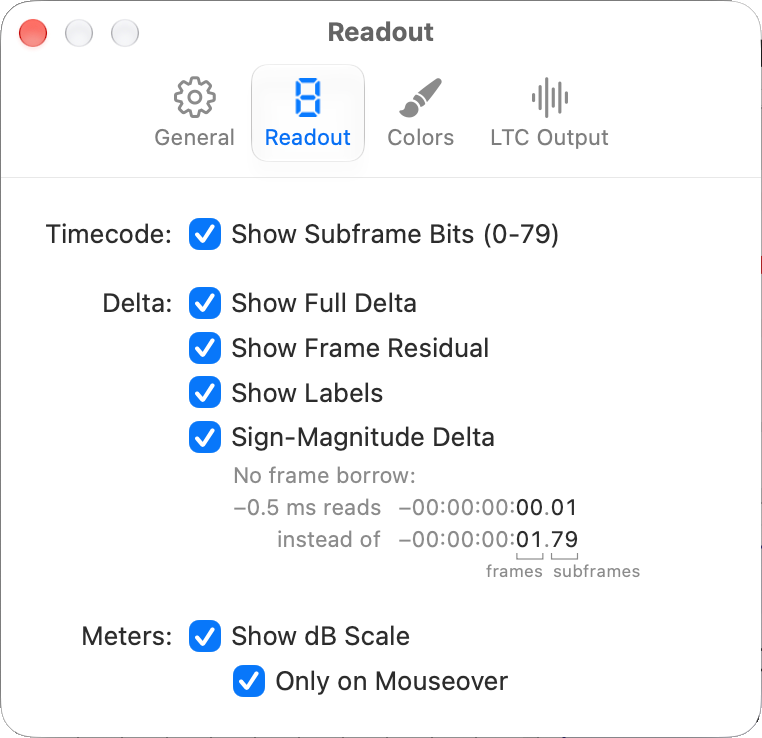
Settings for General and Readout.
Settings for Colors and LTC Output.
Available on the Mac App Store.
Free
$0
download from the Mac App Store
Built-in test signal: a master and a drifting source
Your master channel live: timecode, user bits, frame rate
Solo: in-app purchase
+ $29.99
one-time · price may vary by region
Master reference plus 1 compare channel
Every LTC measurement: offset, drift, mixed frame rates, HFR
Drift report as PDF and session logs
LTC output from the master’s timecode
Pro: in-app purchase
+ $89.99
one-time · $59.99 if you own Solo
Everything in Solo
Up to 8 channels: master plus 7 compare channels
Multiple Timecode Compare measurements
Built-in precision NTP client
LTC output from NTP time
FAQ
Short answers to the questions I get most.
Why do I need Timecode Compare at all?
Two devices can show the same frame number and still be almost a whole frame apart.
Generators jammed in the morning drift apart over the day, and even a fresh jam sync is
no guarantee: there are generators that can be twenty to thirty milliseconds off right
after jamming and only land on the right spot after a second or third try. Nothing on
the device tells you which jam was the good one.
Until now, all you could do was trust every device. Timecode Compare gives you a
tool to verify them while there is still time to fix things: it listens to all your
LTC sources at once and measures, sample-accurately, how far each one is from the
master and how fast that gap grows. With NTP it also tells you how close you are to
true time of day, and the drift report puts it on record for the production.
What do I need to connect my sources?
Any Core Audio interface with two or more inputs.
Can I use a macOS Aggregate Device to combine two interfaces?
Yes. Build one in Audio MIDI Setup and Timecode Compare treats it like any other
input device.
Be sure to activate Drift Correction; macOS then resamples them onto one common
timebase.
That correction costs a little: it shows up in the drift reading as a few hundredths to
tenths of a millisecond wandering back and forth, depending on the interfaces. For the most
accurate measurement, use a single interface.
How accurate is the measurement?
Offsets are determined sample-accurately, at 48 kHz that is a resolution of about
0.02 ms. Drift is measured over time from the same data, with a
trend and 24-hour projection.
Which frame rates are supported?
All common SMPTE rates: 23.98, 24, 25, 29.97 (DF/NDF), 30, plus HFR at 47.96, 48,
50, 59.94 and 60 fps.
How does HFR mode work, does it just double/skip the frames?
No. LTC only ever carries the base rate: shoot 47.96, 48, 50, 59.94 or 60 fps
and two recorded frames share one timecode number. Some hardware marks that by doubling
the frame number (1, 2, 3 becomes 2, 4, 6). Timecode Compare
instead derives the in-between frame from the sample-accurate position of the LTC frame edge. The frame counter runs the full 0-59 at 60 fps, with no skipped
numbers.
An offset of 00:00:00:01.47 at 30 fps reads
00:00:00:03.07 in HFR (same offset time 53.09 ms),
counted in 16.67 ms frames. Subframes run 0-39 instead of 0-79, and
the 24-hour drift projection is shown in the HFR rate. The measurement itself is
untouched: offset and drift always come from raw sample positions and stay sub-frame
accurate at any rate.
HFR offHFR on
Can I compare sources running at different frame rates?
Yes. When the rates differ (say 25 vs 29.97), comparing frame numbers makes no
sense. So the app compares points in time instead.
Every LTC frame carries a time stamp. The app turns it into plain seconds:
at 25 fps, frame 12 means 480 ms; at 30 fps, frame 15 means
500 ms. Once everything is in seconds, the frame rates no longer matter. And
because both signals come in through the same audio interface, the app also knows the
exact moment each frame arrived, down to the sample.
The time difference between the two sources is the Full Delta, in
milliseconds. From it the app calculates frames and subframes in the channel’s own
rate. The channel is marked with an
chip, and drift keeps being measured across the rates.
How accurate is an NTP time server as reference?
It depends on the server and the network path. A server on your own network, for
example a GNSS time server on a wired link, is far more accurate than a public server
on the internet. For frame-accurate measurement against UTC, always use a time server
on your own network. That does not mean a server on the internet cannot be
frame-accurate, it just is not guaranteed.
Public servers such as time.apple.com are polled every 64 seconds at most.
Servers on your own network can be polled as often as every four seconds. Each poll is
a burst of four packets, and only the fastest reply counts.
The master shows you how accurate it is right now. The
chip is the jitter of the last 16 measurements, the
chip the largest maximum error among them: the most your time can be off from the
server’s time source. Both run from
green to red as accuracy drops. Click the master’s timecode for the full NTP
details: server, stratum, round trip, frequency and the network interface in
use.
What does Settling mean with an NTP master?
After the app starts or you change the server, its NTP client first has to learn
how fast your Mac’s clock runs against the time server. Until it has, the
reference can still wander a little. That phase is called settling.
While it lasts, the master shows a
chip with the time left and the
drift bars are labeled SETTLING. Offsets are shown live as usual, but drift
from this phase is left out of the drift figures and the report. Settling takes
10 minutes, or 30 minutes if the app has not used this server within the
last 24 hours. With Adaptive Settling in Settings it ends as soon as the
reference runs steadily, after 3 minutes at the earliest.
What does the honeycomb bar under the NTP master show?
NTP has no audio, so the master shows a honeycomb bar where the other channels
have their level meter.
While the reference settles, the cells fill from left to right and the color runs
from red through orange and yellow to green. It only gets as far as jitter and
maximum error allow: on a noisy network path the bar never turns green.
Once settled, every server reply adds a cell on the right, in the color of the
weaker of the two chips:
Color
Jitter below
Maximum error below
Dark green
Green
Yellow-green
Yellow
Amber
Orange
Orange-red
Red
Crimson
or more
or more
A poll without a reply leaves an empty cell, and each
reply flashes the bar briefly. Over time the bar becomes a history of your time
server’s quality.
How do I set the frame rate when NTP is the master?
NTP carries time, not frames, so the master takes its frame rate from your
sources: by default from Timecode A (input 1). With no signal there, it
takes the rate of the next input that has one.
To set it yourself, right-click (or Control-click) the FPS bar under the
master’s digits and
pick a rate up to 30 fps. Automatic (Timecode A) switches back. For
47.96 to 60 fps, turn on HFR in the toolbar.
How do I set an offset for the NTP master?
Your audio interface delays incoming LTC by its input latency, usually a fraction
of a millisecond. The NTP master has no such delay, so even a perfectly synced
source reads slightly late. The offset shifts the master to match. It is stored per
audio interface.
Feed LTC from a GNSS-locked source, for example your grandmaster, into one input
and wait until settling has finished. Right-click (or Control-click) the
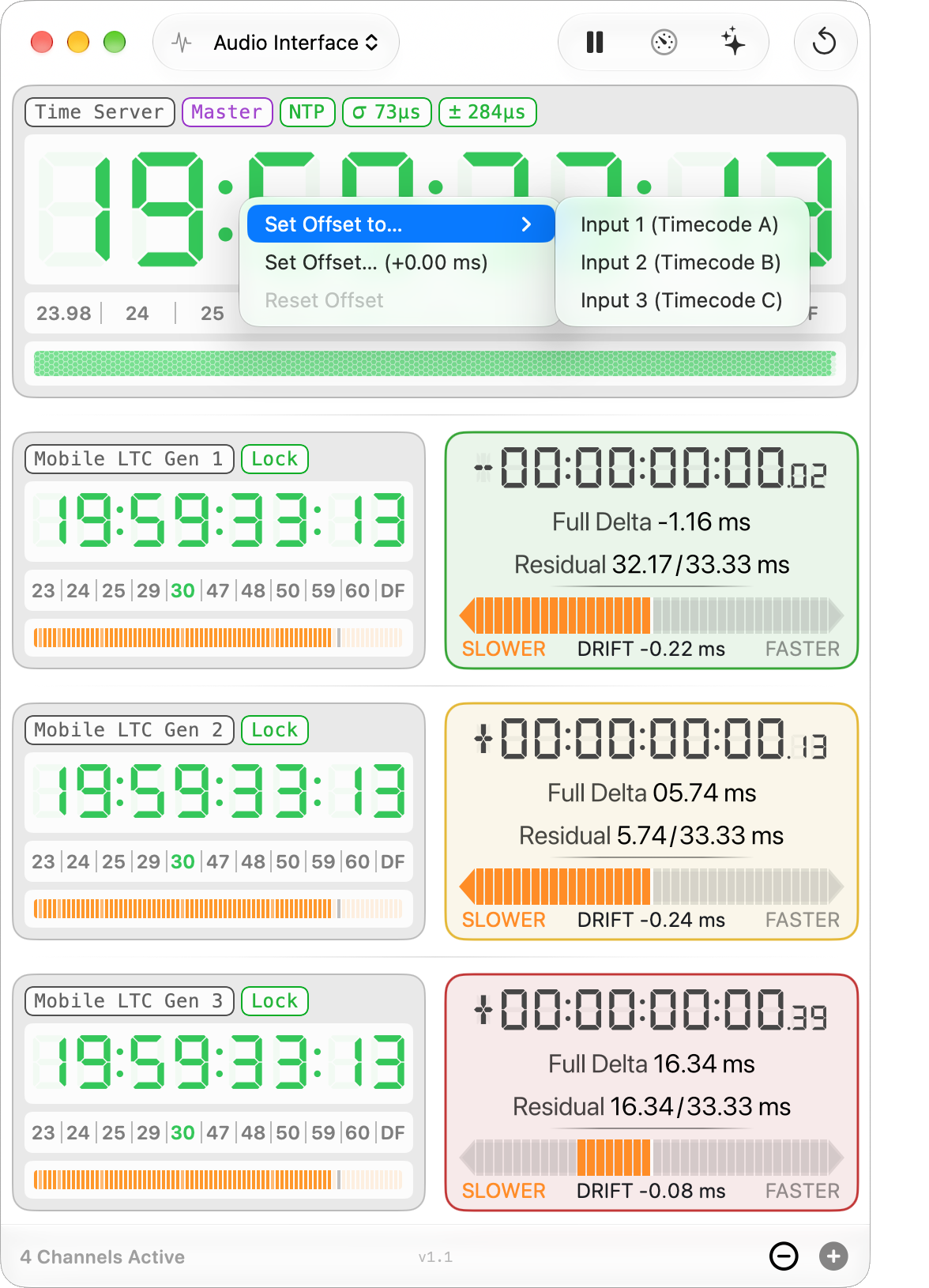
master’s digits and choose Set Offset to… and that input. The
app measures it for 3 seconds and sets the offset so that the input reads zero.
Use only a source that is itself locked to true time, otherwise its error ends up in
the offset.
Set Offset… in the same menu takes a value in milliseconds (up to
±100 ms), Reset Offset sets it back to zero. While an offset is
set, the master shows an
chip with its value. Changing it restarts the
drift measurement on all channels.
Can Timecode Compare generate LTC?
Yes, with Solo or Pro. The LTC output sends the master’s timecode, or with Pro
the time from your NTP server, to any channel of any Core Audio output, for example to jam a
timecode generator on set. Frame rate, output level, user bits (local date, SMPTE 309M
with time zone, or your own eight hex digits) and an offset for the output latency are
set in Settings. The output is in sync with the master, but its frame rate can be set
separately, so a master at 30 fps can still jam a camera at 24.
What does MASTER, LOCK or UB mean?
Each channel shows these chips above its digits, always in this order, and only
when they apply.
The channel name. A, B, C … in input order; double-click to rename.
The reference channel. All offsets are measured against it. Any channel can take that role, pick it in Settings.
The master runs on your NTP time server. Green once settled, red while settling or without a reply.
The time server stopped answering. The master keeps running on the learned rate for up to 30 minutes.
No usable NTP time: the server never answered, or holdover has run out. The master falls back to the Mac’s system time.
Valid LTC is being decoded.
On the NTP master in place of Lock: the reference is still settling, with the time left.
On the NTP master in place of Lock once settled: the jitter of the last 16 measurements, green to red as it grows.
Maximum error: the largest possible error against the server’s time source.
This channel’s frame rate differs from the master’s. Delta and drift are
measured as normal. Mixing rates is fine.
High Frame Rate activated.
Display frozen. Measurement keeps running.
Audio is arriving, but it is not timecode.
Signal found, working out the timecode.
Waiting for the first reply from the NTP server.
Nothing usable on this input.
The signal is unstable. Check your cabling.
User bits are present. Click to read them.
An input offset is set on the NTP master. Right-click (or Control-click) the master’s timecode to change it.
Are there in-app purchases?
Timecode Compare is free to download. The free version shows a built-in test
signal and the master channel of your own interface, so you can try it before you buy
anything.
Two optional one-time in-app purchases add the measurement. Solo ($29.99) compares
one LTC source against the master, with drift, PDF report, session logs and LTC output
from the master. Pro ($89.99) includes Solo, raises the limit to 8 channels in one
window, runs several measurements at once, each with its own interface, and adds the
NTP reference: your time server as master, via the app’s own precision NTP
client, plus LTC output from NTP time.
Already own Solo? Then Pro costs $59.99. Everything is a one-time purchase, there is
no subscription.
How do payment and refunds work?
Purchases are handled entirely by Apple: the app never sees a payment. Refunds go
through Apple’s standard process, from the receipt or via
reportaproblem.apple.com.
Are the in-app purchases covered by Family Sharing?
No. In-app purchases stay with the Apple Account that bought them. One purchase per user.
Does the app record audio? What about privacy?
No. Audio is analyzed in memory, in real time, purely to decode timecode: nothing is recorded, stored or transmitted. The only network traffic is NTP: the app talks to the time server you choose and, when you ask it to, looks for time servers on your local network. The App Store
privacy label truthfully says Data Not Collected.
Details in the privacy policy.
How do I document the measurement for the production report?
Export a drift report: one PDF with a verdict per channel, drift charts and the
event log. File › Export Drift Report (PDF)… (Command-E) creates
it for the running measurement. A production name entered in the save dialog is
printed on page 1.
The app also keeps a CSV log in the background. File › Export Drift Report
from Log… turns any earlier log into a report.
Timecode Compare is now a free download. Try the built-in drifting test signal,
or use it as a timecode reader for an external LTC source, before you buy anything.
Two one-time in-app purchases: Solo compares an LTC source against the master, Pro
includes Solo and adds up to 8 channels, several measurements at once and the NTP
reference. Owners of Solo pay only the difference for Pro.
NTP reference: use a time server as master and measure your LTC sources against
true time of day, with the app’s own precision NTP client.
Live reference quality: jitter and max error chips, a honeycomb history bar and a
details window with server, stratum, round trip and network path.
Find Servers… searches your local network for NTP time servers and
ranks them by accuracy.
LTC output: send LTC from NTP time or from the master’s timecode to any audio
output, with date, SMPTE 309M or custom user bits and a latency offset.
The LTC output from the master can run at its own frame rate, so a master at 30 fps
can jam a camera at 24.
Set Offset to… aligns the NTP master with a GNSS-locked LTC input,
stored per audio interface.
Improved
Much lower graphics load with glow on.
New windows show the running measurement. With Pro, File › New
Measurement Window starts a separate measurement with its own interface, log and
report.
The drift report is reworked: local time axis, a verdict in four levels with drift in
frames, curves colored by fractions of a frame, marked source jumps and your channel
names.
File › Restart Measurement starts a fresh drift baseline and a new log
without restarting the input. Changing the master does this automatically.
Changed: Reset in the drift bar’s right-click menu is now
Reset Drift Bar and only sets the bar back to zero. For a new drift baseline,
use File › Restart Measurement.
Settings are reorganized into General, Readout, Colors and LTC Output.
Your Mac no longer goes to idle sleep during a measurement. The display still
can.
Delta panels fade smoothly after a reset instead of jumping.
Fixed
On macOS 26 Tahoe, the display no longer stays sluggish after the screen saver
or screen lock.
Pause freezes master and channels at the same moment, and the session log keeps
recording while paused.
With several windows open, measurements no longer disturb each other or mix their
data in one session log.
A buffer size change by another app no longer shifts the measurement.
Frame rate detection is more reliable right after a signal appears.
Session logs no longer record false drift values while a channel has no
signal.
 Timecode Compare